
I keep a running list of small tools I've built for myself. Not products — just things I needed that didn't exist, or existed badly enough that building felt faster than tolerating.
Here's the current list, with what each one does and why I built it.
LinkNotes
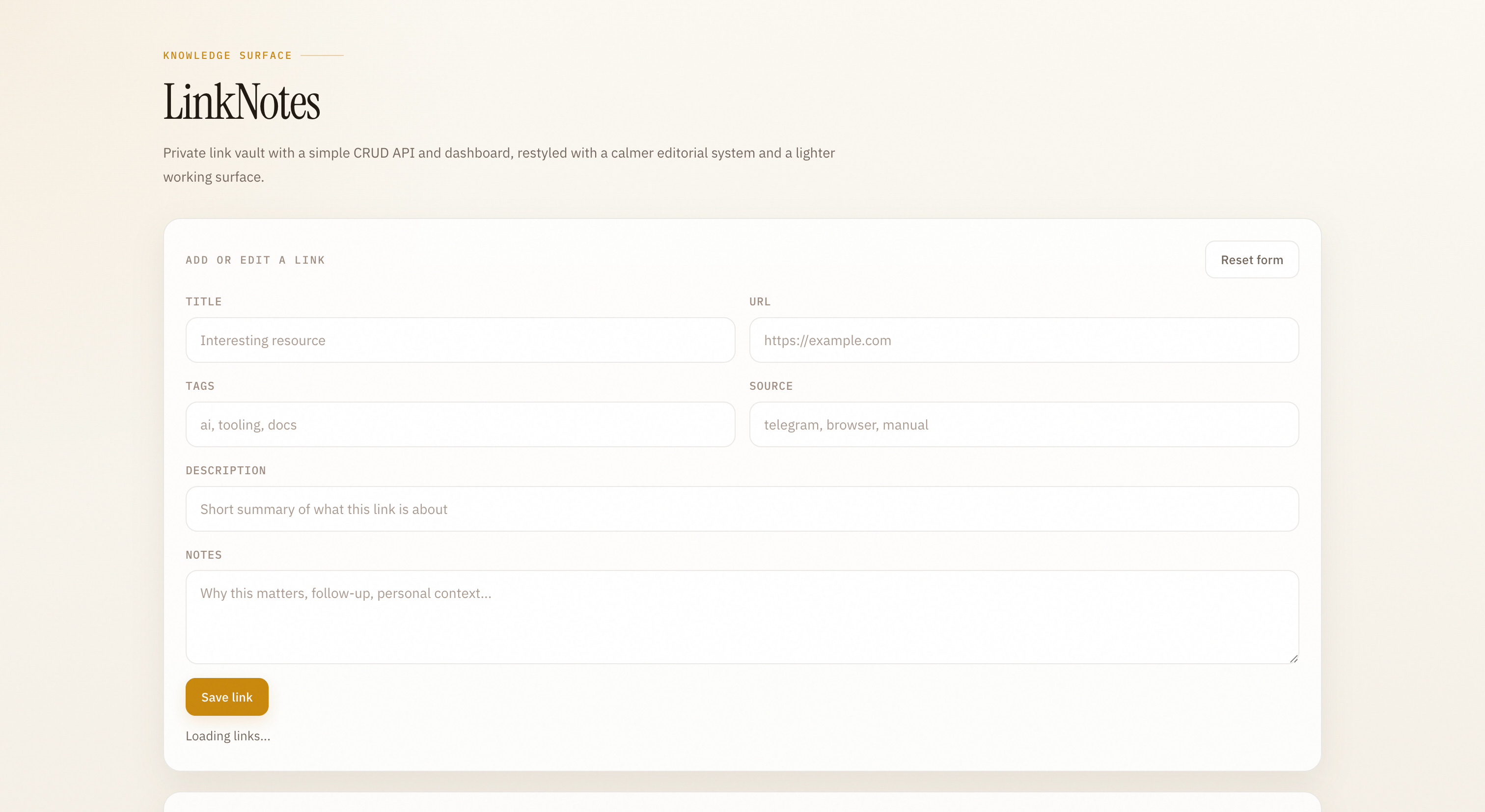
What it is: A private, password-protected link vault with a CRUD API. Each link has a title, URL, tags, source, and a notes field.
Why I built it: Most bookmark managers optimize for quantity. Pocket, Raindrop, browser bookmarks — they're all great at storing links and terrible at storing why you saved them. Three months later you open a bookmark and have no idea what it was for.
LinkNotes forces a notes field. "Why does this matter?" is a required part of saving. The source field tracks where it came from. Tags let me filter by project or topic. And because it exposes a simple API, I can add links from scripts, automations, or other tools without touching the UI.
Built on Cloudflare Workers + D1. The whole thing is a single Worker — no external services, no database bills.
Tree Chat
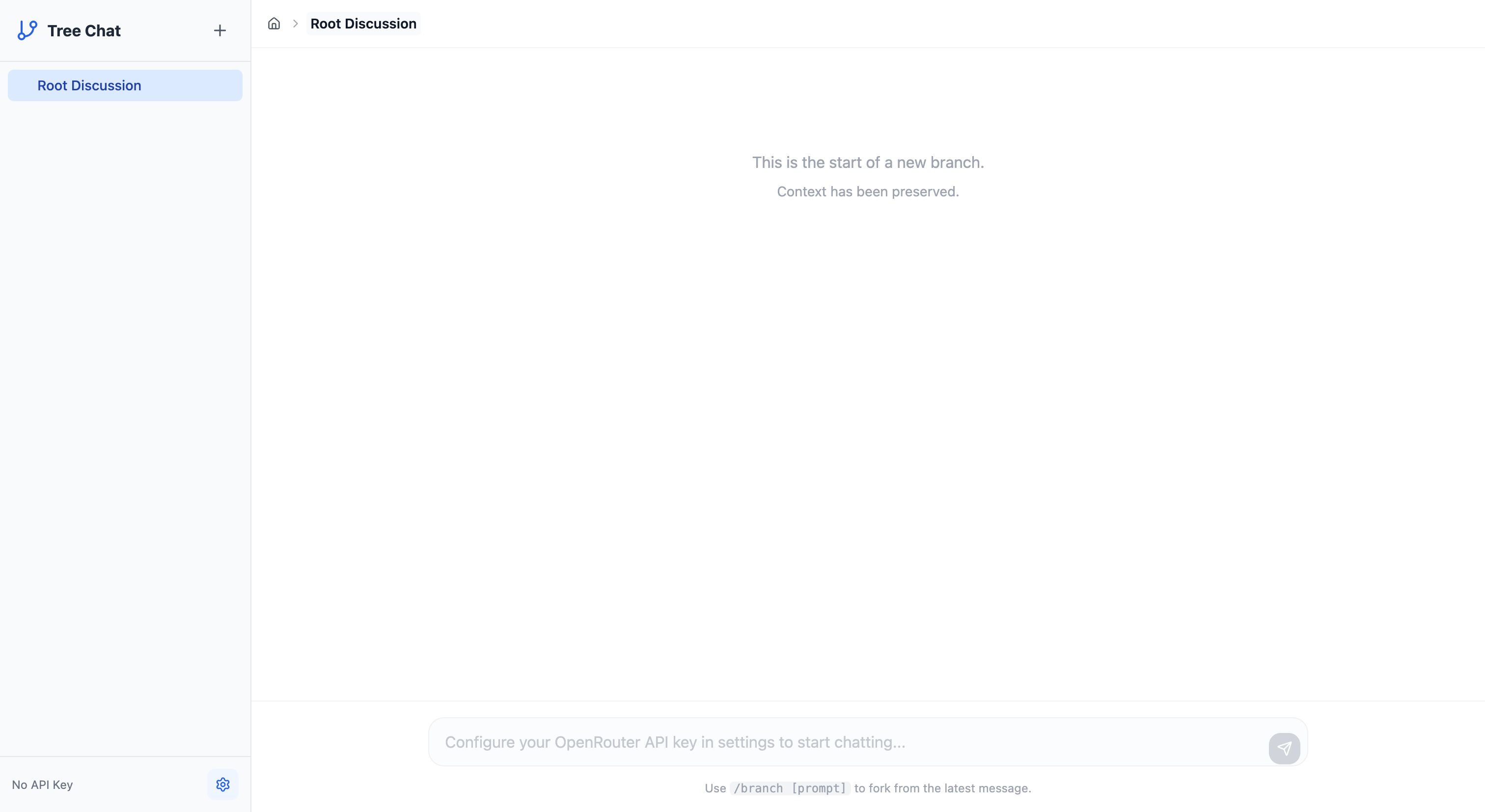
What it is: A chat interface where conversations branch into trees. Use /branch [prompt] at any point to fork from the current message and explore a different direction, preserving the original thread.
Why I built it: Standard chat UIs have a fundamental problem: they're linear. If you're exploring a problem with an LLM — comparing two architectural approaches, exploring different framings of a question, trying a prompt variation — you have to either scroll back and lose your place, or start a new conversation and lose the context.
A tree solves this. Each branch inherits the context up to the fork point. You can explore three different answers to the same question simultaneously, navigate back to any node, and keep the whole exploration in one place.
Built on Cloudflare Pages with a D1 database for conversation persistence. Each node stores its parent ID and the full message content, and the tree is reconstructed on load.
TabReplay
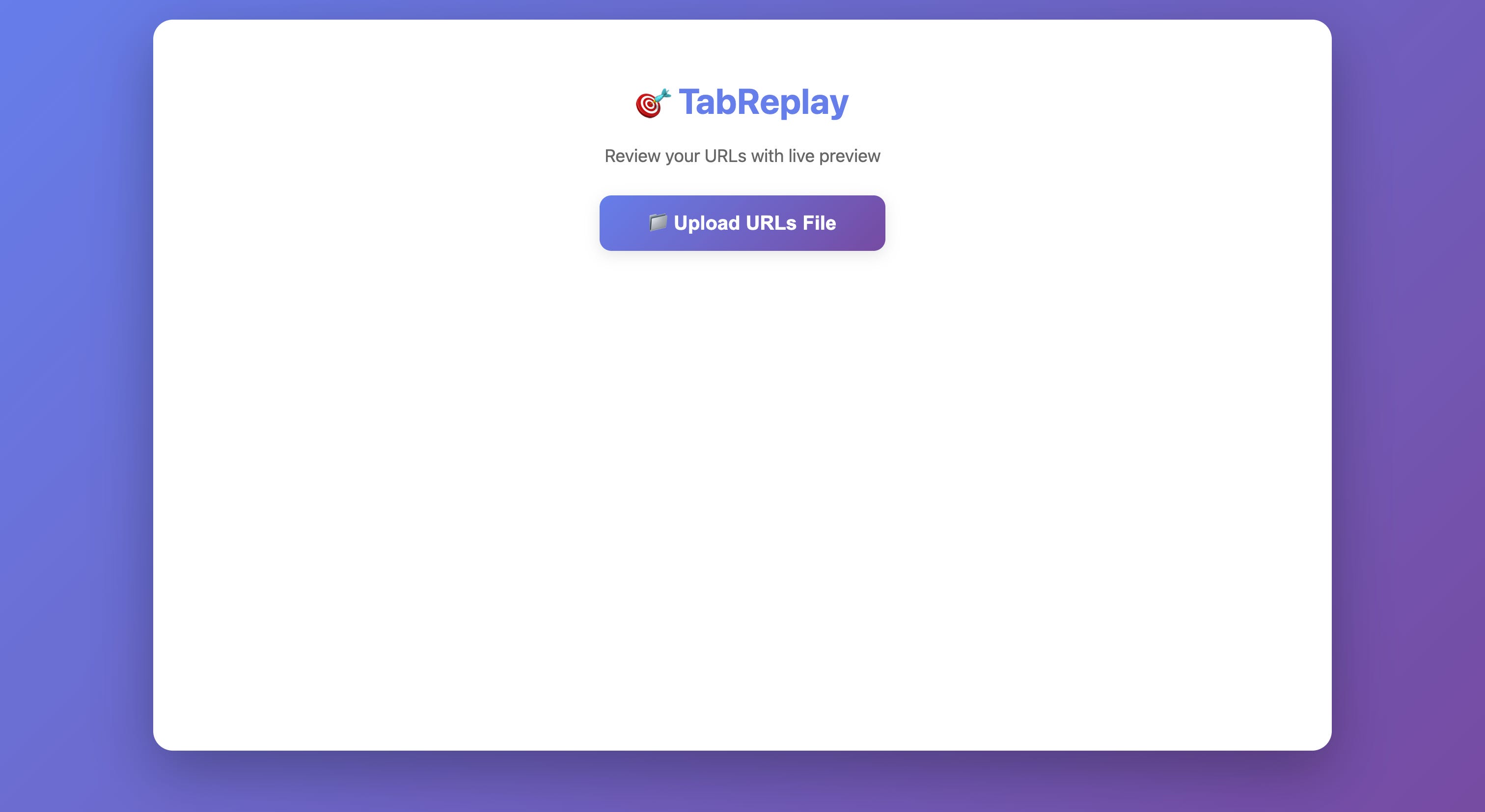
What it is: Upload a file of URLs, and TabReplay lets you review each one with a live preview and triage them — keep, read now, or discard.
Why I built it: Tab hoarding is a real problem. I'll open 40 tabs in a research session and then not close Chrome for a week because I'm afraid of losing something. The real answer isn't better tab management — it's committing to a decision about each tab before closing.
TabReplay makes that decision-making fast. Export your tabs as a list of URLs (most browsers support this), drop the file in, and review each one with the actual page loaded alongside it. It uses Playwright under the hood to visit and render each URL, so you see what's actually on the page, not just the title.
HAR Vision
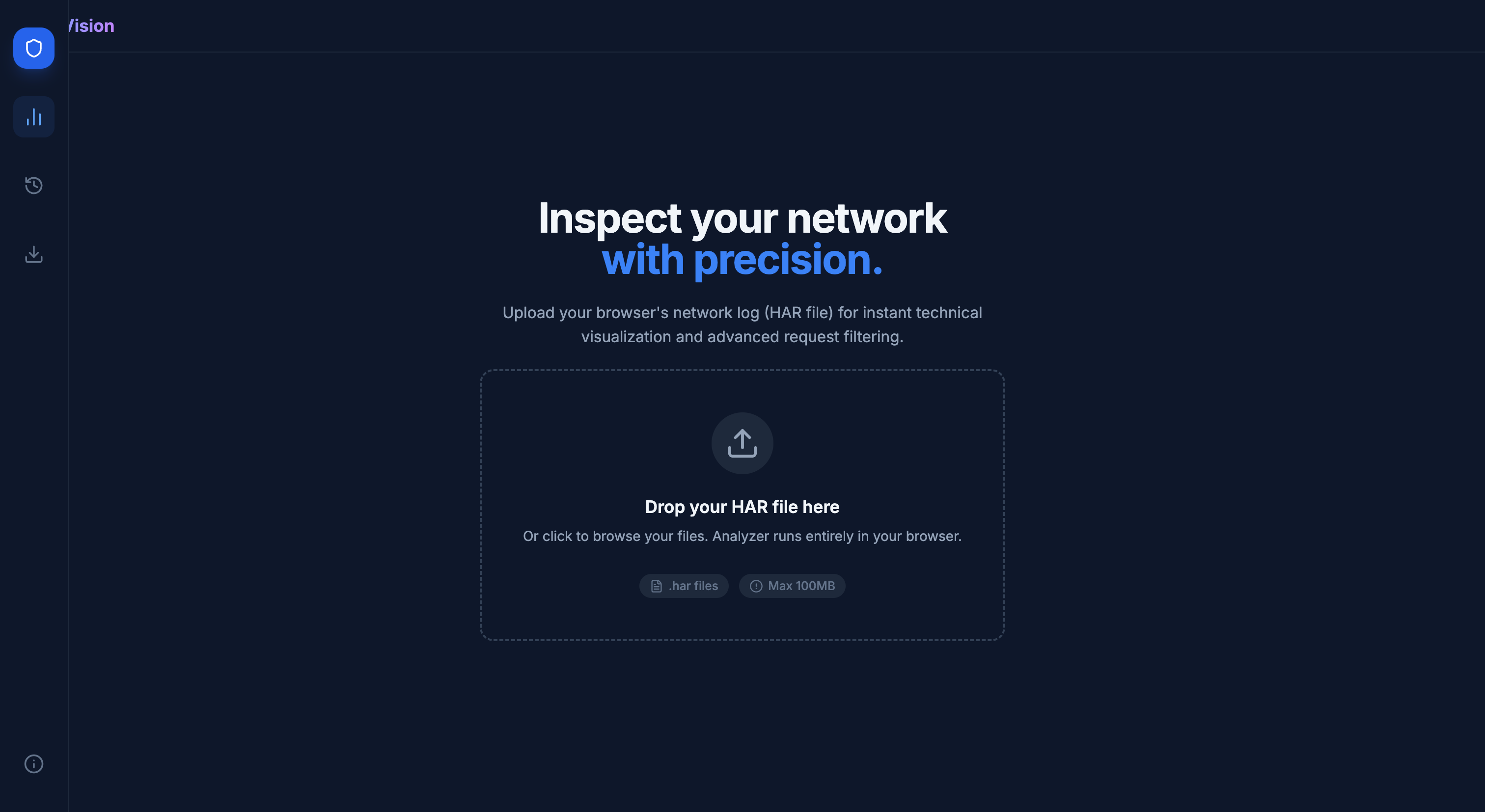
What it is: Drop a .har file — your browser's network log — and get instant visual analysis, timeline view, and request filtering. Runs entirely in your browser; nothing leaves your machine.
Why I built it: HAR files are invaluable for debugging, reverse engineering APIs, or understanding why a page is slow. But the raw JSON is unreadable, and the only decent viewer (Chrome DevTools) requires you to reproduce the session live. If you captured a HAR from a user's session or a CI test run, you're stuck parsing JSON by hand.
HAR Vision loads the file locally and gives you a filterable timeline — filter by domain, method, status code, or response time. Useful for finding the slow request in a 300-request page load, or spotting which API endpoints a web app calls.
ClipShot
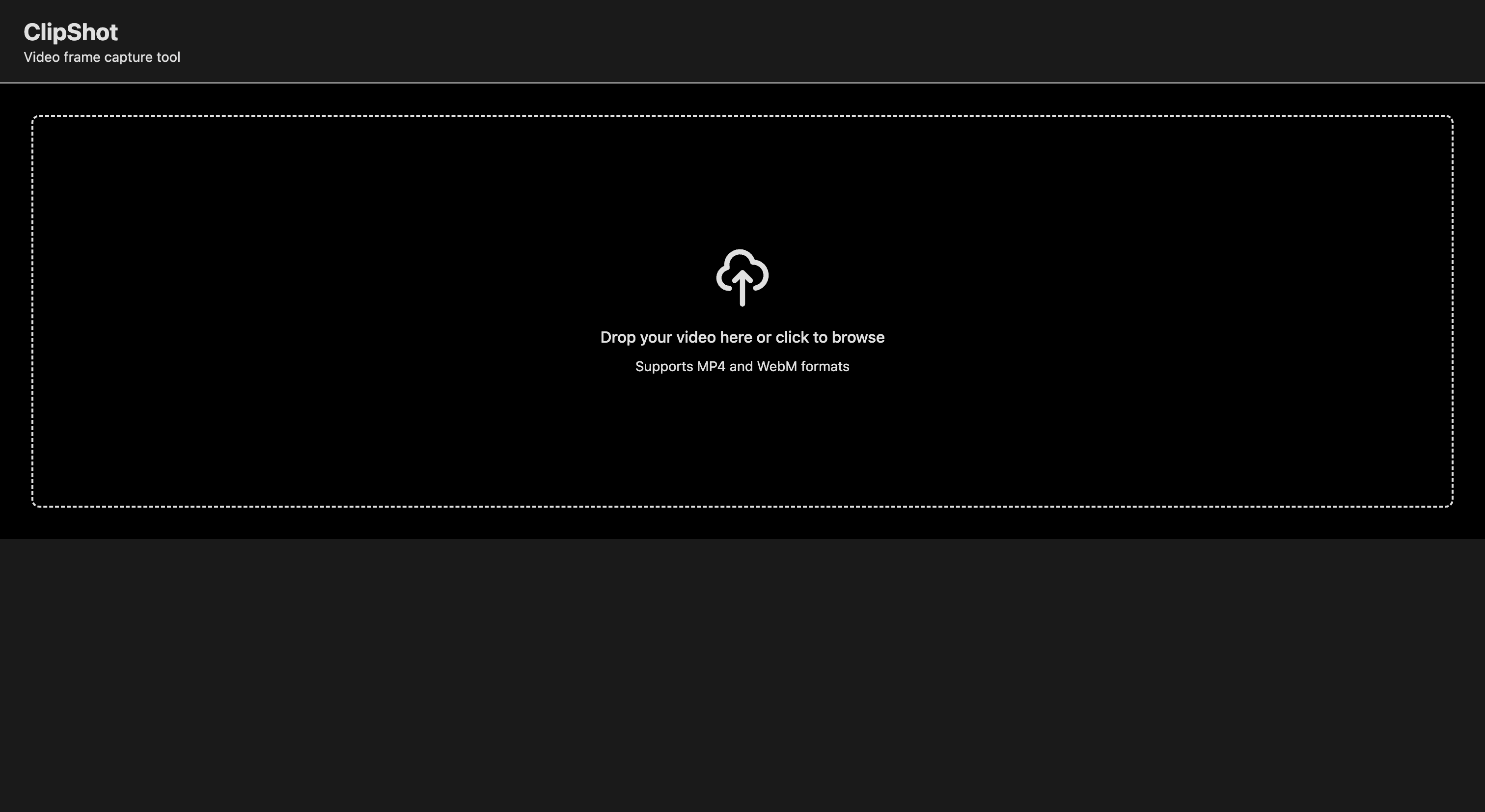
What it is: Drop a video file, scrub through a Premiere Pro-style thumbnail timeline, and capture frames at native resolution. Export individually or as a ZIP.
Why I built it: I record a lot of screen recordings for documentation and demos. Extracting a good frame usually meant: open the video in QuickTime, scrub manually, take a screenshot, crop. ClipShot turns this into: drop the video, click the frame, done.
The whole pipeline runs in the browser using the HTML5 <video> element and Canvas API — no upload, no server, no waiting for processing. You capture exactly what you see in the timeline at native resolution, then export individual frames or bulk-download as a ZIP.
GridSplitter
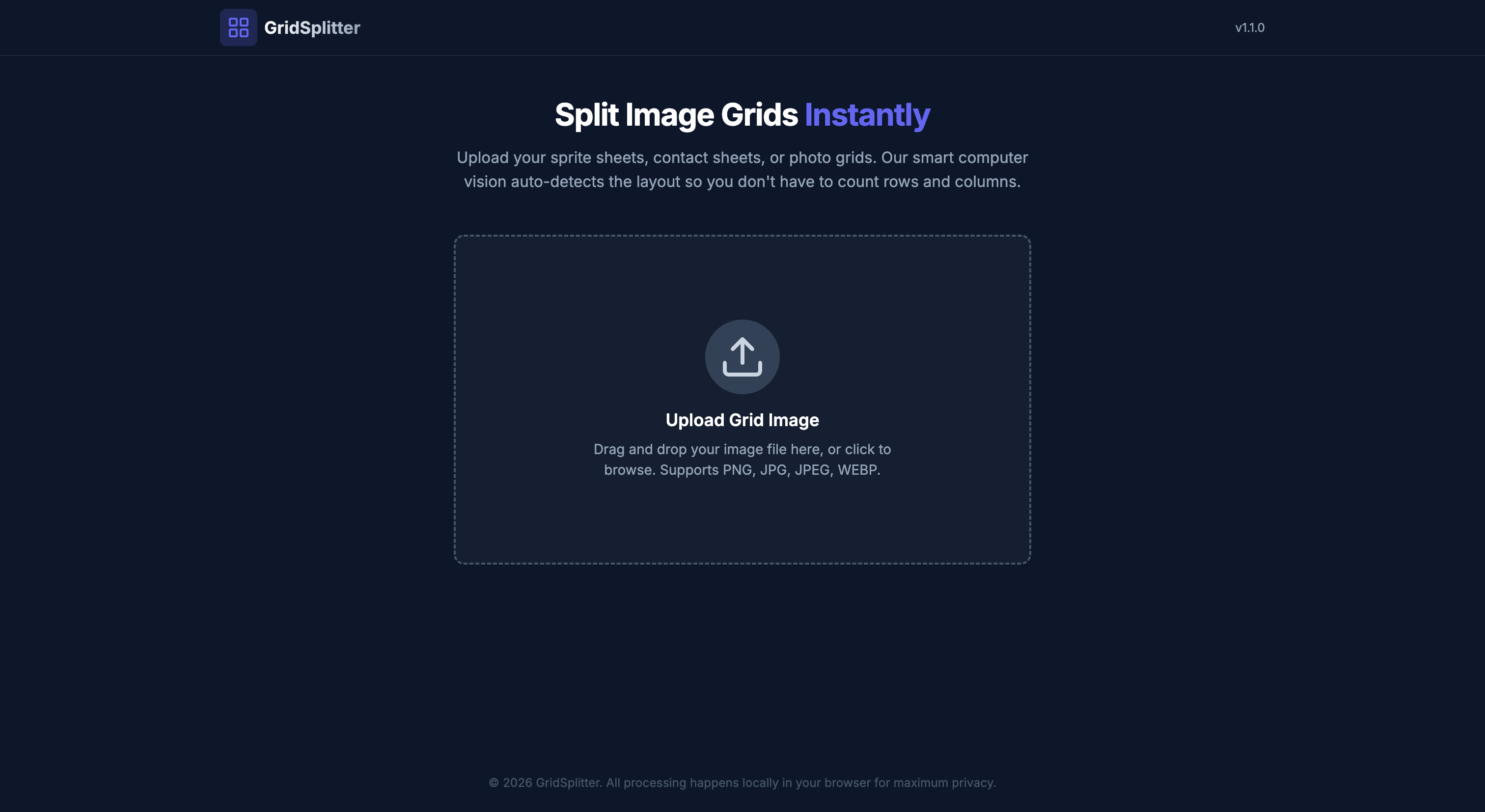
What it is: Upload a sprite sheet, contact sheet, or photo grid — GridSplitter auto-detects the rows and columns using computer vision and splits it into individual files for download.
Why I built it: I was building a small game prototype and needed to extract individual frames from sprite sheets I found online. Every existing tool either required you to manually specify the grid dimensions or was a desktop app. GridSplitter uses edge detection to find the grid structure automatically — you don't count rows or columns, you just upload and download.
The CV pipeline runs in the browser using a WASM port of OpenCV. Processing happens entirely client-side, so there's no file size limit and no privacy concern with uploading assets.
Healpix
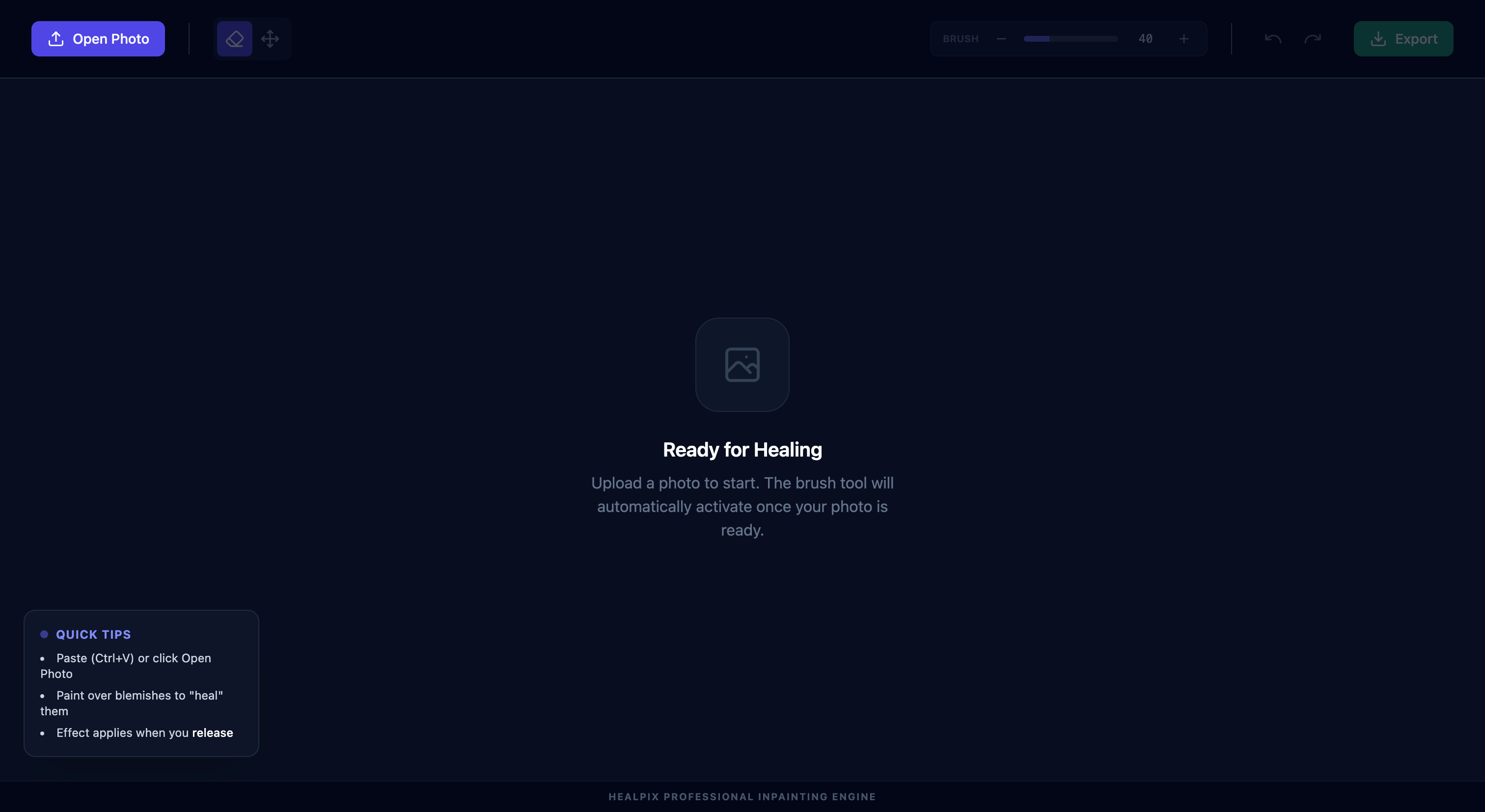
What it is: A browser-based photo healing tool. Paint over blemishes, dust spots, watermarks, or unwanted objects with a brush — the inpainting engine fills them in seamlessly.
Why I built it: The Photoshop healing brush is one of those tools that feels like magic the first time you use it. But Photoshop is $55/month and overkill if that's all you need. Healpix does one thing — heal — using the same underlying inpainting algorithms (Telea and Navier-Stokes), in the browser, with no install.
Paint the region you want removed, release the mouse, and the engine fills it in. Adjustable brush size, full undo/redo history, and export when done.
Watermark Remover
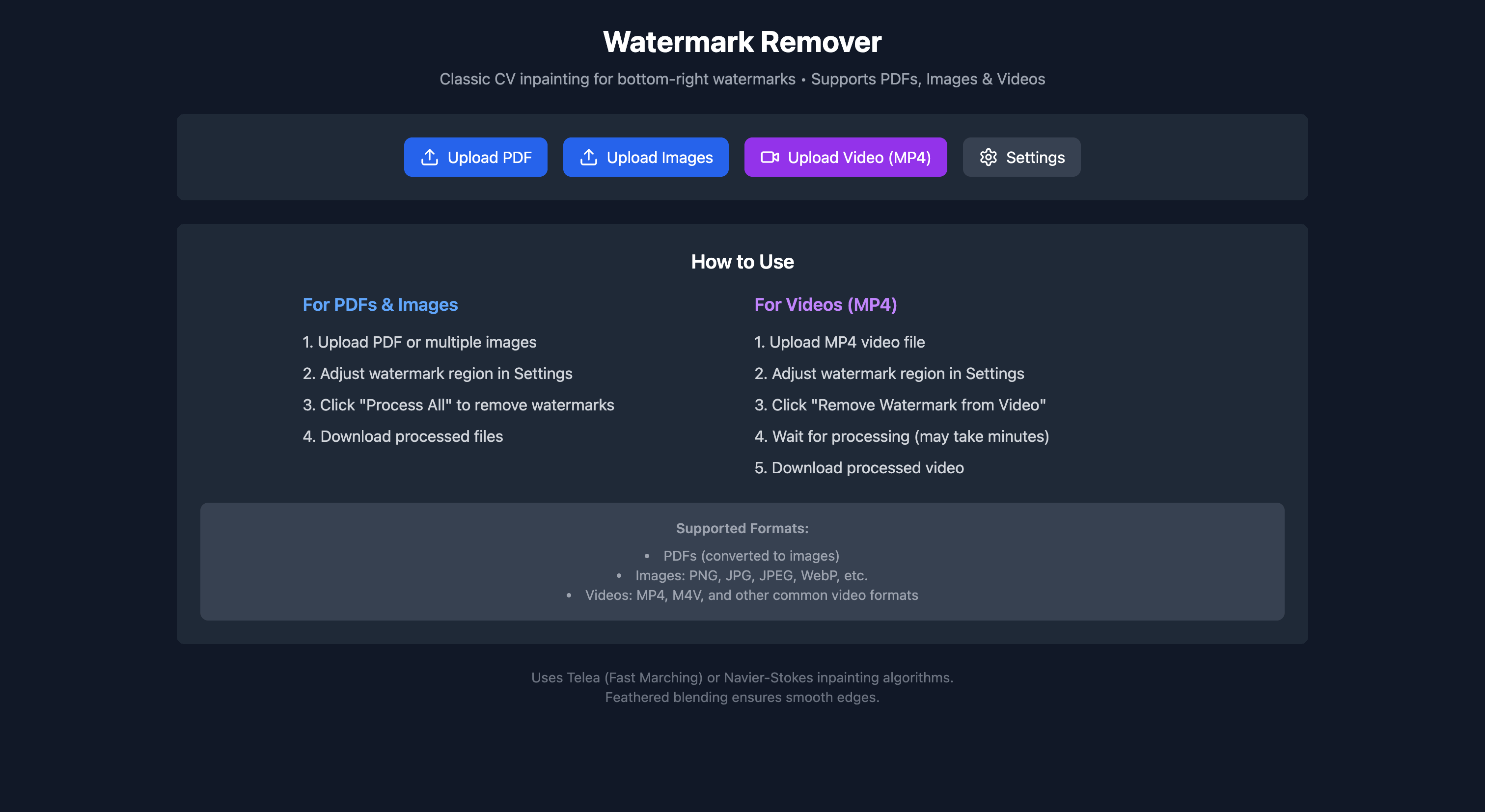
What it is: Upload a PDF, set of images, or MP4 video — configure the watermark region — and it strips the watermark using CV inpainting. Processes PDF pages in batch and video frame-by-frame.
Why I built it: Most watermark remover tools online are either broken, behind a paywall, or cap file sizes aggressively. This one uses the same Telea and Navier-Stokes inpainting algorithms that Healpix uses, but targets a fixed region across many frames — which is exactly how most watermarks work (static, bottom-right corner).
The video processing pipeline extracts frames at 1fps, inpaints each frame, then re-encodes the video with ffmpeg. Slow, but it works on arbitrarily long videos.
Swap Fitter
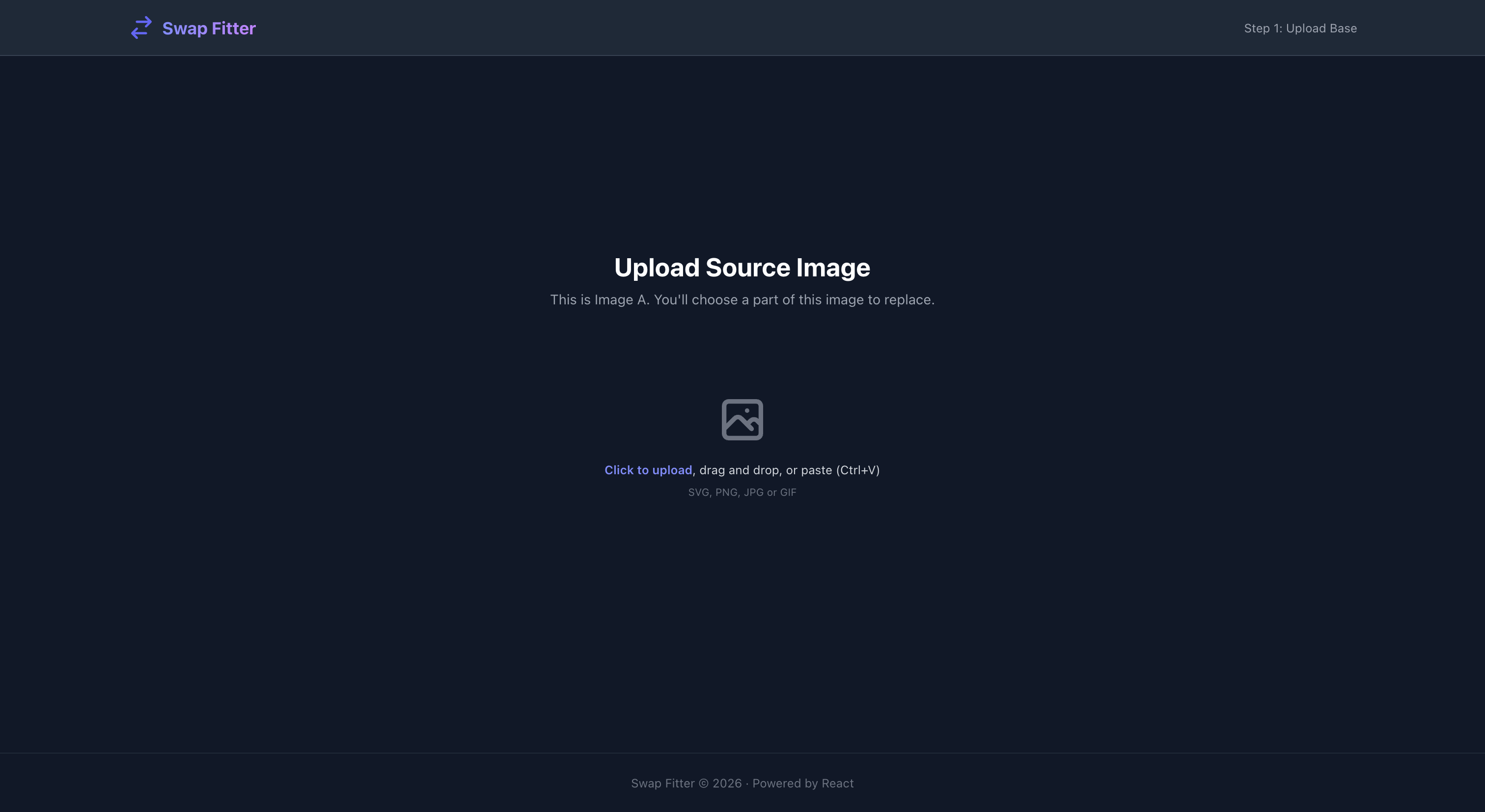
What it is: Two-step image compositing. Upload a base image, draw a selection over the region you want to replace, then upload a second image to fill that region. Runs client-side.
Why I built it: I kept needing to answer "what would this look like if..." questions — swapping a UI component in a screenshot, replacing a label on a product photo, mocking up a design variant. Opening Figma or Photoshop for a two-minute task is too much friction. Swap Fitter is just the compositing step, nothing else.
Step 1: upload base image, draw selection. Step 2: upload replacement, which gets scaled to fit the selection. Export. Done.
AutoCarousel
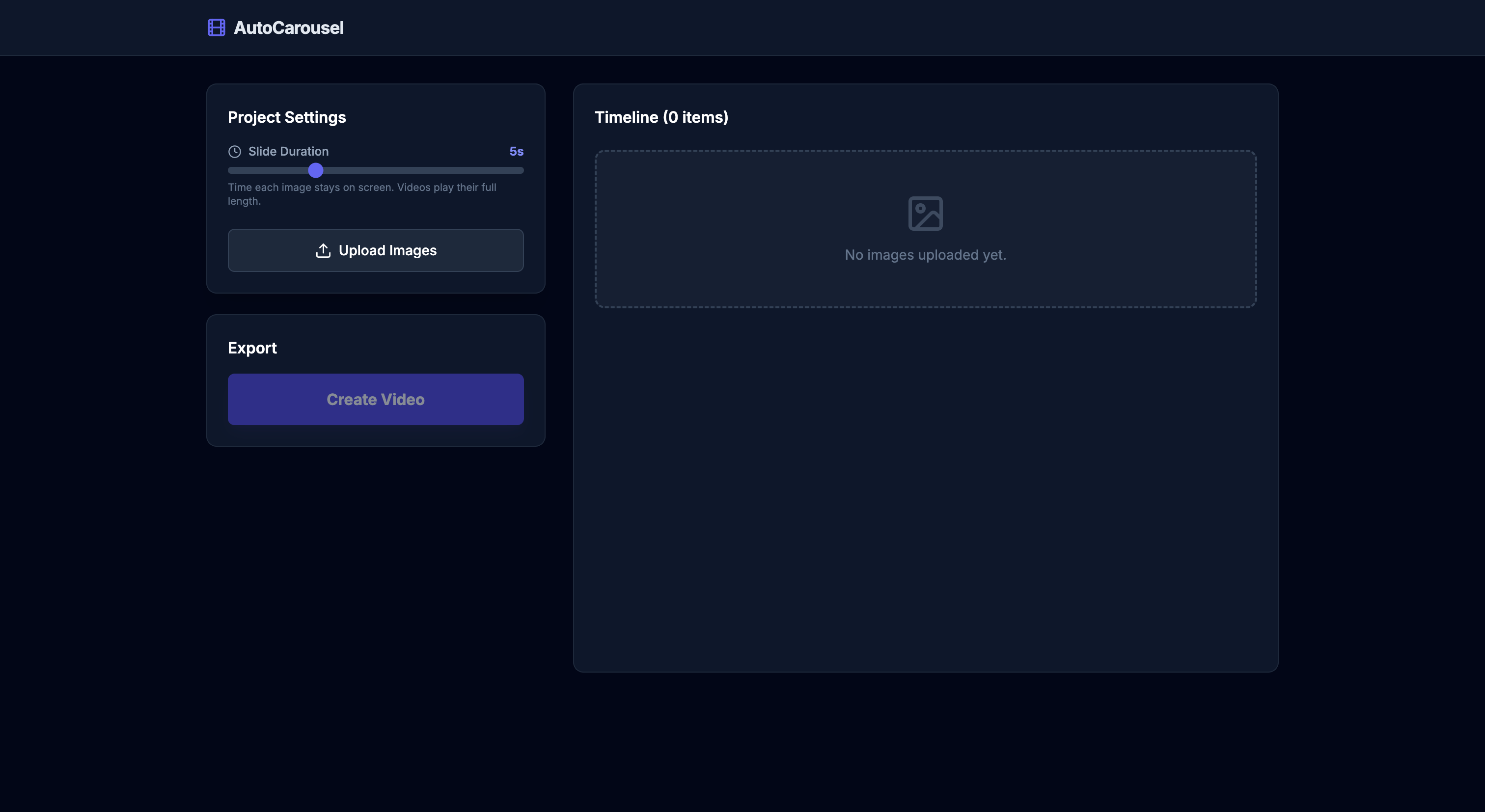
What it is: Upload images in order, set the slide duration (how long each image stays on screen), and export as an MP4 video file.
Why I built it: Social media carousels — especially on LinkedIn and Instagram — get more reach than static images. But converting a set of slides or screenshots into a video carousel usually involves either a design tool with video export (slow) or a social media scheduler (locked in). AutoCarousel just turns images into a video, no account required.
Upload your images in order, drag to reorder if needed, set 3–5 seconds per slide, and export. That's it.
Video Looper
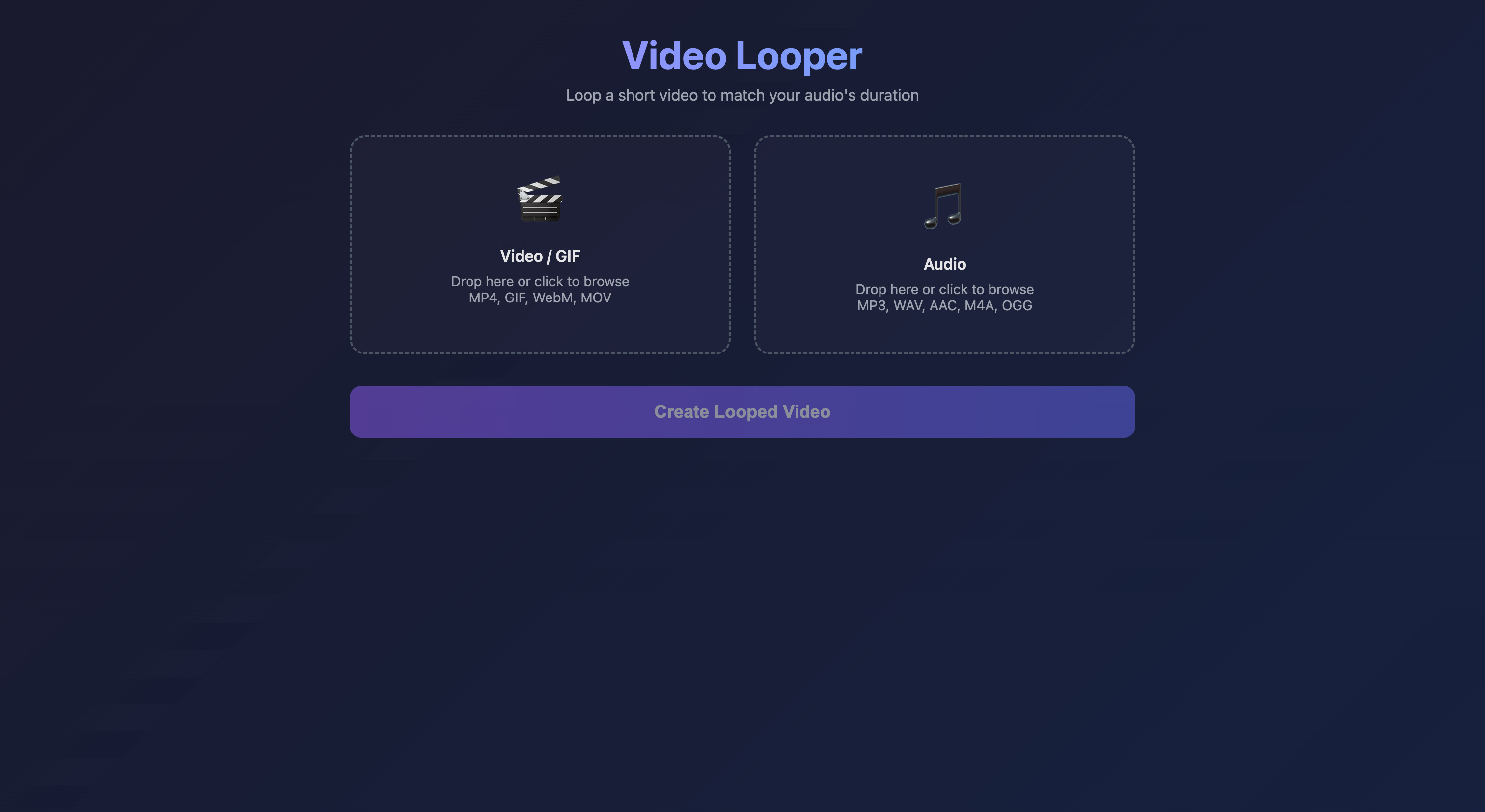
What it is: Drop a short video clip and an audio track — the tool loops the video to exactly match the audio's duration and exports a single combined file.
Why I built it: A common content format is a looping visual over a music track — ambience videos, demo backgrounds, lo-fi aesthetic clips. The problem: your video might be 4 seconds and your audio 3 minutes. Manually looping in a video editor means dragging the same clip 45 times.
Video Looper calculates exactly how many loops are needed, handles the partial last loop cleanly, and muxes the audio track in. Upload both files, click create, done.
The pattern I've noticed across all of these: the tools I actually reach for are the ones that do exactly one thing and require zero configuration. No accounts, no settings screens, no onboarding. You understand them in ten seconds or you close the tab.
That's the design constraint I try to build to. Most of these took a few hours each. The hard part was figuring out what to leave out.